
When I first received the task, it sounded straightforward:
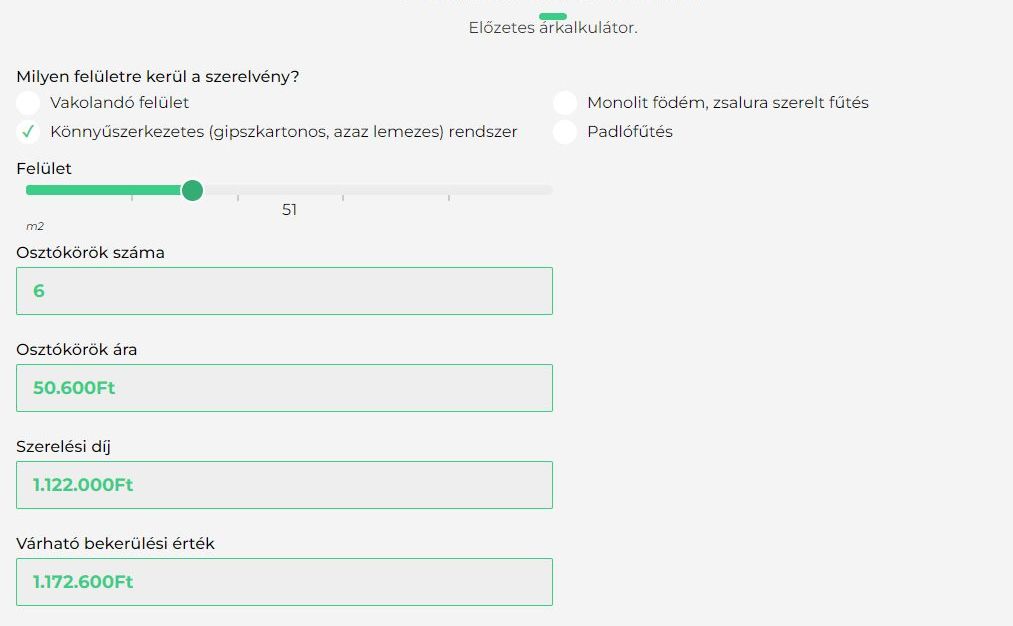
Place four option buttons on a WordPress page. Each button represents an Ft/m² price. Combine it with a slider that sets the square meters, and display the total cost instantly.
That was the initial scope – simple enough on paper.
But as usual, real development begins where simplicity ends.
Step 1: From Idea to Specification
Before writing a single line of code, I turned the initial concept into a development specification.
This meant clarifying every detail with the client – what exactly needed to happen when each element was changed, and what additional logic would be required behind the scenes.
During this conversation it became clear that we weren’t just calculating price per square meter.
There was another component involved – a device called the “distributor ring”.
Its quantity also influenced the final price, which meant that the calculator had to integrate an additional pricing table based on the number of these units.
So the project evolved from a two-element formula into a more complex multi-field pricing model, where logic, thresholds, and dynamic values all interacted.
Step 2: Choosing the Right Plugin
Initially, I tested three plugins for the job:
- Cost Calculator Builder
- Calculated Fields Form
- Forminator
The Cost Calculator Builder looked great visually, but as soon as I tried to set up the core calculations, I hit a limitation – all logic-based features were locked behind the Pro version.
Since the goal was to build a fully functional calculator using only free tools, I switched to Calculated Fields Form.
This plugin turned out to be incredibly flexible. It allows custom JavaScript formulas, conditional logic, and even user-defined functions – all within the free tier.
Step 3: Implementing the Dynamic Logic
The core logic was simple in concept:
- Select an option (price per m²)
- Set the square meters (via slider)
- Define the number of distributor ring units
- Multiply, adjust, and display the result instantly
At first, the function looked like this:
// Javascript

(function(){
IF(fieldname7>0) return 30500;
IF(fieldname7>2) return 35750;
IF(fieldname7>3) return 40000;
})();
It worked – but it was repetitive, hard to maintain, and far from elegant.
So I restructured it into a clean, scalable JavaScript function that uses threshold bands instead of stacked conditions:
// Javascript

(function () {
var x = +fieldname7 || 0;

var bands = [
{ t: 11, p: 88000 },
{ t: 10, p: 81000 },
{ t: 9, p: 74000 },
{ t: 8, p: 68000 },
{ t: 7, p: 62800 },
{ t: 6, p: 57000 },
{ t: 5, p: 50600 },
{ t: 4, p: 47000 },
{ t: 3, p: 40000 },
{ t: 2, p: 35750 },
{ t: 0, p: 30500 }
];

for (var i = 0; i < bands.length; i++) {
if (x > bands[i].t) return bands[i].p;
}

return 0;
})();
This version allowed the calculator to dynamically select the appropriate price based on the “osztókör” count – effectively turning a static form into a small, reactive pricing engine.
Step 4: Testing and Fine-Tuning
Once the logic was implemented, I tested edge cases – what happens if no option is selected, if the slider is at minimum or maximum, or if invalid input is entered.
The plugin handled it gracefully. The form dynamically updated the total price in real time without page reloads.
With just a few more field connections and a bit of CSS fine-tuning, the calculator was ready to go live.
What I Learned
- Even the simplest-looking calculator hides layers of logic once real client requirements surface.
- Calculated Fields Form is a powerful, underrated plugin for free dynamic calculations in WordPress.
- Structuring logic into data-driven “bands” (thresholds and prices) makes the code cleaner and far easier to maintain.
- Client clarification is key – turning a vague request into a technical specification prevents confusion later.
Final Thought
What started as “four option buttons and a slider” turned into a small but satisfying piece of engineering.
It reminded me that in web development, the real skill lies not in complexity – but in clarity: knowing what the client truly needs, choosing the right tool, and writing logic that feels simple, even when it isn’t.
Buy me a coffee?

If you enjoyed this story, you can buy me a coffee. You don’t have to – but it means a lot and I always turn it into a new adventure.
Buy a coffee for Steve
 Linktree
 Short introduction